Voice Recorder
Record audio from your microphone directly in the browser. Download as WebM or M4A. No upload, no signup, 100% private.
Your Recording
🔒 All audio is processed locally in your browser. No file is uploaded to any server.
Free Online Voice Recorder — Record Audio in Your Browser (2026)
Whether you're recording a podcast intro, capturing voice notes for a client call, creating narration for a YouTube video, or documenting an interview, DocEasy's free online voice recorder gives you professional-quality audio capture in your browser — no install, no signup, no watermark, and complete privacy because nothing ever uploads to a server.
How to Use the Voice Recorder
Recording your voice takes just three simple steps:
- Step 1 — Click "Start Recording": The browser will ask for microphone permission. Click "Allow" once — this is remembered for future visits.
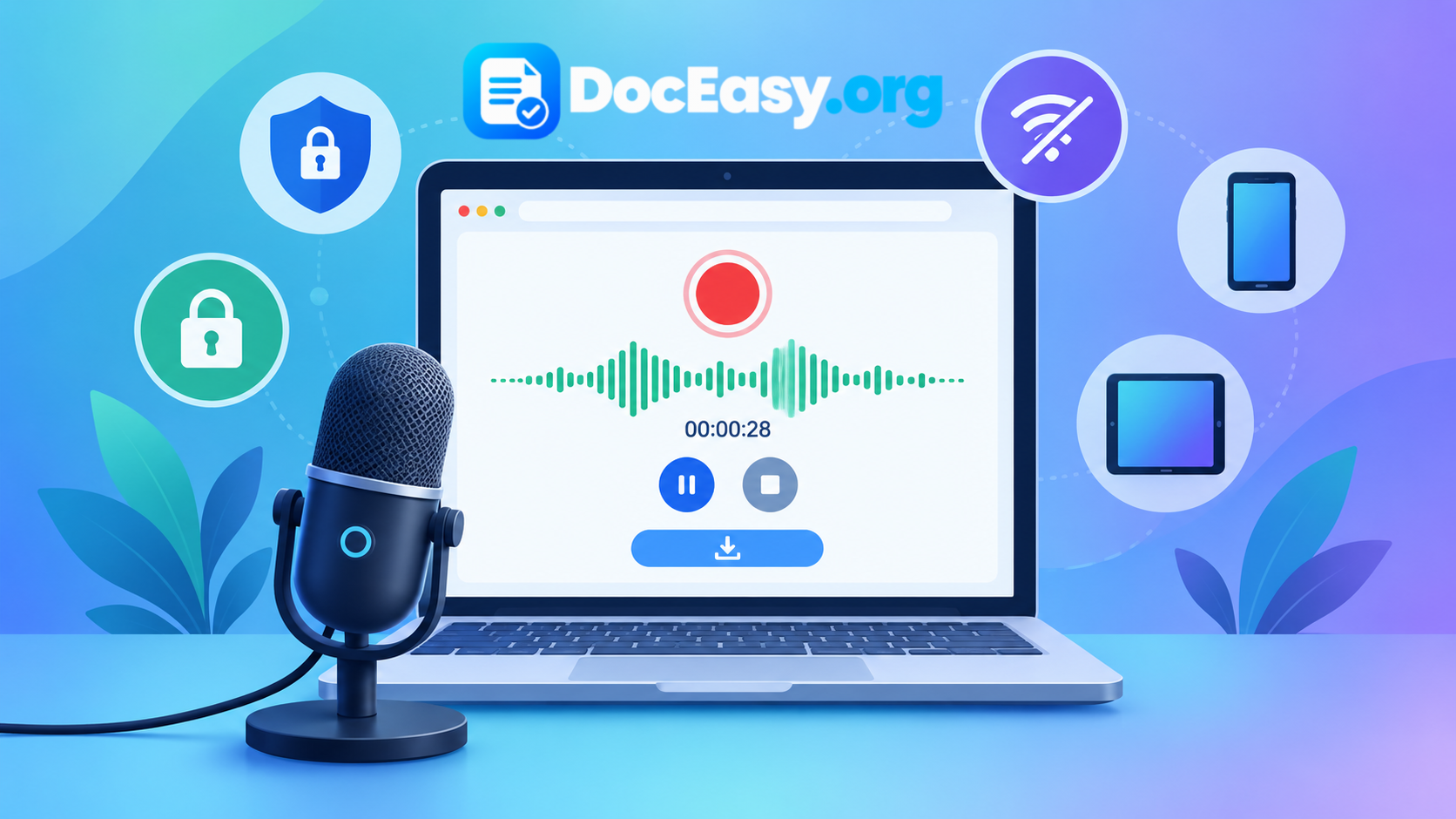
- Step 2 — Speak into your microphone: You'll see the timer counting up, a red pulsing dot, and a live waveform bouncing with your voice. Click "Pause" at any time to temporarily stop; click again to resume from the same point.
- Step 3 — Click "Stop": A preview player appears below with your recording. Click "Download" to save the file, or "Record Again" to start a fresh take.
That's it — no signup, no email, no payment. The entire workflow runs in your browser tab.
Where Your Recording Is Saved
Your recording is saved only on your device — never on any server. When you click "Start Recording," the browser's MediaRecorder API captures audio directly into your device's memory. When you click "Download," the file is written to your Downloads folder. At no point does any data travel over the internet to DocEasy's servers. You can verify this: disconnect your Wi-Fi after the page loads, and the recorder continues working perfectly.
Audio Format Support
The output format depends on your browser:
- Chrome, Edge, Brave, Opera: WebM using Opus codec at 128 kbps — excellent quality for voice.
- Safari (macOS, iOS): M4A using AAC encoding — also high quality.
- Firefox: OGG using Opus codec.
All three formats play natively on Windows, macOS, Linux, Android, and iOS without any extra software. If you need MP3 specifically, use DocEasy's Universal Media Editor to convert the file in a few seconds.
Common Use Cases
- Podcast recording: Solo episodes, intros, outros, ads, or audiobook chapters.
- Voice memos: Quick notes-to-self, meeting recaps, or shopping lists.
- Interview capture: Recording phone or in-person interviews (with consent).
- Video narration: Creating voiceover audio for tutorials, reviews, or explainers.
- Language learning: Recording yourself to compare pronunciation with native speakers.
- Music practice: Capturing vocal takes or instrument practice sessions.
- Accessibility: Recording audio versions of documents for visually impaired users.
- Testimonials: Collecting client quotes for websites and marketing material.
Getting the Best Audio Quality
Three tips dramatically improve your recordings:
- Use an external microphone. Even a ₹500 lavalier mic or a USB headset mic is far better than your laptop's built-in mic.
- Record in a quiet room. Soft furnishings (curtains, carpets, bookshelves) absorb echoes. Avoid bathrooms, kitchens, and empty halls.
- Watch the waveform while recording. The green bars should stay in the middle range — never touching the top. If they constantly spike, you're too close or speaking too loudly.
Privacy and Security
Voice recordings often contain sensitive information — client calls, medical notes, private conversations, or confidential business plans. DocEasy is built so none of this ever leaves your device:
- No uploads: Recording happens entirely in your browser's memory.
- No server processing: There's no DocEasy server handling your audio.
- No tracking: We don't log what you record or how long.
- No account needed: Use the tool completely anonymously.
- Offline capable: After loading once, you can turn off Wi-Fi and record.
Works on All Modern Devices
The Voice Recorder works on:
- Desktop: Windows, macOS, Linux, Chrome OS.
- Browsers: Chrome 90+, Edge 90+, Firefox 88+, Safari 14+, Brave, Opera, Vivaldi.
- Mobile: Android (Chrome, Firefox, Samsung Internet), iOS (Safari 14.3+, Chrome for iOS).
Frequently Asked Questions
How do I record my voice using DocEasy Voice Recorder?
Click "Start Recording," grant microphone permission when your browser asks, speak into the mic, and click "Stop" when done. A preview appears below — click "Download" to save the file. Three steps, no signup, no installation.
Is this voice recorder really free?
Yes — 100% free, forever. No signup, no email, no watermark, no daily limit, no file-size cap, and no premium tier. Record as many voice memos as you want, forever.
Where is my recording saved — on your server or my device?
Only on your device. Recording happens locally in your browser. Nothing is uploaded. You can verify by opening Developer Tools → Network tab — zero outgoing requests carry your audio data.
Which audio format does the recording save in?
Chrome/Edge save as .webm, Safari saves as .m4a, and Firefox saves as .ogg. All three play natively everywhere. Convert to MP3 with the Universal Media Editor if needed.
Does it work on mobile phones?
Yes — Android phones (Chrome, Firefox, Samsung Internet) and iPhones (Safari 14.3+, Chrome for iOS) both support the recorder. Just tap Start, allow mic access, and record.
Why does my browser ask for microphone permission?
Every modern browser requires explicit permission before any website can access the microphone. This is a security feature to prevent malicious sites from secretly listening to you. Grant it once per browser and it's remembered.
Can I pause and resume mid-recording?
Yes — click "Pause" while recording. The timer stops and no audio is captured. Click "Resume" to continue from exactly where you stopped. Paused sections are removed from the final file.
How can I get the best audio quality?
Use an external microphone (USB or headset), record in a small soft-furnished room, and speak 6–12 inches from the mic. Watch the waveform — peaks should stay around 50–75%, not clipping at 100%.
Is there a time limit on recordings?
No imposed limit. Recording length depends on your device's available memory. A one-hour recording at 128 kbps is roughly 60 MB, which every modern device handles easily.
Can I record audio playing on my computer (system audio)?
Not with this tool — it captures only your microphone. Use DocEasy's Screen Recorder instead (it can capture system audio), then extract the audio using the Universal Media Editor's Audio tab.
What happens if I close the tab while recording?
The recording is immediately cancelled and lost — there's no server-side recovery because everything happens in memory. Always click "Stop" and "Download" before closing the tab.
Can I use the recordings for commercial purposes?
Yes — everything you record is yours to use freely, including commercially. No watermarks, no attribution, no restrictions. The only exception is if the input content itself is copyrighted by someone else.
Why is my recording file so large?
Voice recordings at 128 kbps are compact (10 minutes ≈ 10 MB). If yours is much larger, convert to a lower bitrate using the Universal Media Editor. For voice, 64 kbps is plenty.
Does the recorder work offline?
Yes — after the page loads once, it works completely offline. Since all processing is local, no internet is needed. Load the page online, then turn off Wi-Fi and record.
Why is my recording silent or barely audible?
Check: (1) Correct microphone selected in OS settings; (2) Input volume at 70% or higher; (3) No other app (Zoom, Teams) holding the mic exclusively; (4) Speak directly toward the mic 6–12 inches away.
Can I convert the recording to MP3?
Yes — download the recording first, then use DocEasy's Universal Media Editor (Audio tab) to convert WebM/M4A/OGG to MP3 in a few seconds. Conversion happens locally in your browser.
Does the browser need to stay in focus while recording?
Not strictly, but recommended. On desktop Chrome and Edge, recording continues when switching tabs. On mobile, background recording is less reliable — keep the tab visible for critical recordings.
Can I edit the recording after downloading?
Yes — use Audacity (free, Windows/Mac/Linux) for advanced edits. Or use DocEasy's tools: Split Audio, Audio Speed, Silence Remover, or Universal Media Editor for basic trims and format changes.
Which browsers are supported?
Chrome 90+, Edge 90+, Firefox 88+, Safari 14+, Brave, Opera, Vivaldi, and all Chromium browsers. Chrome and Edge offer the smoothest experience.
Do you keep any logs of my recordings?
No. We don't log filenames, durations, formats, or any metadata. Our analytics only records anonymous page views — never file activity. Since files never leave your device, there's nothing to log.
Can I record with a Bluetooth microphone or headset?
Yes, but Bluetooth mics use a low-bandwidth profile (HFP/HSP) that reduces audio quality to 8–16 kHz. For professional work, use a wired USB microphone or a lavalier plugged into your computer.
Can I record from a browser tab playing music?
Not directly — this tool captures only the microphone. To record tab audio, use the Screen Recorder with "System audio" enabled, then extract the audio track.
How is this different from a phone's built-in voice recorder?
A phone recorder is great for quick notes, but DocEasy works across devices (start on desktop, finish on mobile), produces higher-quality output with an external mic, and requires no app install. Both have their place.
Related DocEasy Tools
- Universal Media Editor — Convert, trim, compress your recordings
- Screen Recorder — Record screen + system audio
- Webcam Recorder — Record yourself on camera
- Mic Test — Verify microphone before recording
- Webcam Test — Check camera before recording
- Text to Speech — Read text aloud with browser voices
Conclusion
DocEasy's Voice Recorder gives you professional audio capture without the hassle of installing software, creating an account, or uploading files to a server. Record podcasts, voice memos, interviews, narration, or anything else — all in your browser, all completely private.
Try it above. Click Start Recording, speak, click Stop, and download your file in seconds.