Webcam Recorder
Record video from your webcam with microphone audio. Choose your camera and mic, preview live, and download in HD — no upload, no signup, 100% private.
Your Recording
🔒 All video is processed locally in your browser. Nothing is ever uploaded to a server.
Free Online Webcam Recorder — Record Video from Your Camera (2026)
Whether you're recording a professional self-introduction for a job application, capturing a video message for family, creating content for YouTube, or documenting an important moment, DocEasy's free online webcam recorder gives you full HD video capture with microphone audio — no install, no signup, no watermark, and complete privacy because nothing ever uploads to a server.
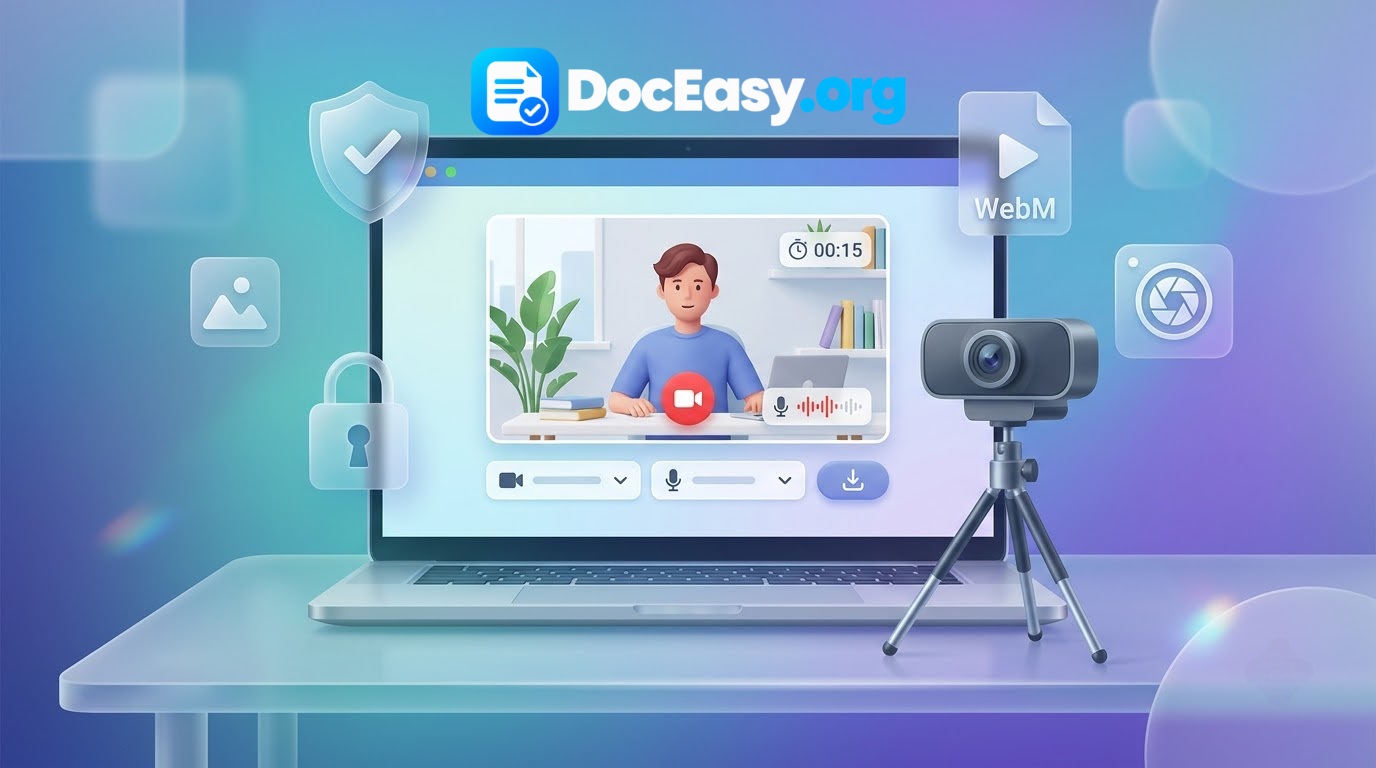
How to Use the Webcam Recorder
Recording your webcam takes just four simple steps:
- Step 1 — Click "Start Camera": Your browser will ask for camera and microphone permission. Click "Allow" once — this is remembered for future visits. A live preview appears.
- Step 2 — Choose your devices (optional): If you have multiple cameras or microphones, dropdowns appear above the preview. Pick the ones you want to use.
- Step 3 — Click "Start Recording": The timer counts up, the red dot pulses, and recording begins. Click "Pause" at any time to temporarily stop; click again to resume from the same point.
- Step 4 — Click "Stop": A preview player appears below with your recording. Click "Download" to save the file, or "Record Again" to start a fresh take.
That's it — no signup, no email, no payment. The entire workflow runs in your browser tab.
Device Selection
If you have multiple cameras (like a built-in laptop webcam plus an external USB webcam) or multiple microphones (built-in mic plus a headset), the tool automatically lists all available devices in dropdown menus. Simply select the ones you want to use — the live preview updates instantly. This is useful for switching to an external USB webcam for better quality, using a headset microphone instead of the laptop's built-in mic, or testing multiple devices to see which looks or sounds best.
Video Output Quality
Recordings are saved as WebM files using the VP9 video codec and Opus audio codec — both modern, efficient, and royalty-free. WebM plays natively in Chrome, Edge, Firefox, Opera, Vivaldi, and most Android browsers. It also plays in VLC, MPV, and most desktop media players. If you need MP4 instead (for iOS or legacy software), use DocEasy's Universal Media Editor to convert WebM → MP4 in a few seconds — the conversion happens locally in your browser.
Resolution depends on your camera. Built-in laptop webcams typically output 720p. External USB webcams often support 1080p. The tool captures whatever your camera outputs — no downsampling, no quality loss.
Common Use Cases
- Job applications: Record a video self-introduction for online applications or LinkedIn.
- Video messages: Send personalized greetings to family, friends, or clients.
- Content creation: Film YouTube intros, vlog segments, or course lessons.
- Online teaching: Record short explainer videos for students.
- Product demos: Show a software feature while narrating the workflow.
- Practice interviews: Record mock answers to review your delivery and body language.
- Video diaries: Keep a personal video journal — no app required.
- Reaction videos: Film yourself reacting to content for social media.
- Testimonials: Collect client or student testimonials in video format.
Tips for Better Recordings
- Lighting: Sit facing a window or use a soft light in front of you. Avoid light sources behind you — they silhouette your face.
- Camera position: Place the camera at eye level, not looking up at you from below or down from above.
- Background: Choose a clean wall, bookshelf, or plant. Avoid messy rooms and distracting posters.
- Audio: Use a headset or external mic if possible. Even a cheap lavalier beats a laptop's built-in mic.
- Framing: Fill about two-thirds of the frame with your upper body. Leave a little headroom above.
- Eye contact: Look at the camera lens, not at your own preview.
- Test first: Do a 15-second test run to check lighting, framing, and audio before the real take.
Privacy and Security
Webcam recordings often contain personal information — your face, your voice, sometimes your home. DocEasy is built so none of this ever leaves your device:
- No uploads: Recording happens entirely in your browser's memory using MediaRecorder API.
- No server processing: There's no DocEasy server handling your video.
- No tracking: We don't log what you record or how long.
- No account needed: Use the tool completely anonymously.
- Offline capable: After loading once, you can turn off Wi-Fi and record.
- Camera indicator: Your device shows a green light whenever the camera is active — always visible.
Frequently Asked Questions
How do I record video from my webcam?
Click "Start Camera," grant camera and mic permission, verify the preview, then click "Start Recording." Click "Stop" when done, then "Download" to save the WebM file. Four steps, no signup.
Is this webcam recorder really free?
Yes — 100% free, forever. No signup, no email, no watermark, no time limit, no file-size cap, no premium tier. Record as many videos as you want.
Is my video uploaded to your servers?
No — everything happens locally in your browser using MediaRecorder API. Nothing is transmitted. Verify by opening Developer Tools → Network tab — zero outgoing requests carry your video data.
Which video format is used?
WebM using VP9 video codec and Opus audio codec — modern, efficient, royalty-free. Plays natively in Chrome, Edge, Firefox, VLC, and most modern players. Convert to MP4 with the Universal Media Editor if needed.
Can I choose which camera and microphone to use?
Yes — after clicking "Start Camera," dropdown menus appear above the preview listing all available cameras and microphones. Select the ones you want. The preview updates instantly.
Does it work on mobile phones?
Yes — works on Android (Chrome, Firefox) and iPhone/iPad (Safari 14.3+). The front camera is used by default. Mobile recordings may be in MP4 on Safari.
Why does my browser ask for camera and mic permission?
Every modern browser requires explicit permission before any website can access your camera and microphone. This prevents malicious sites from secretly watching or listening. A green indicator light stays on while the camera is active.
Can I pause and resume mid-recording?
Yes — click "Pause" while recording. The timer stops and no video is captured. Click "Resume" to continue from exactly where you stopped. Paused sections are removed from the final file.
What resolution is my recording?
It depends on your camera. Built-in laptop webcams output 720p at 30 fps. External USB webcams often support 1080p. The tool captures whatever your camera provides — no downsampling.
How can I look better on camera?
Face a window or soft light in front of you. Camera at eye level. Clean background (wall, plant, bookshelf). Fill two-thirds of the frame with your upper body. Look at the lens, not the preview. Wear solid colors — avoid busy patterns.
Can I record with an external USB webcam?
Yes — plug in the USB webcam, click "Start Camera," and select it from the camera dropdown menu. The live preview will switch to the external camera automatically.
Is there a time limit on recordings?
No imposed limit. Recording length depends on your device's memory. A 10-minute 720p recording is roughly 50–100 MB, which every modern device handles easily.
What if the preview shows a black screen?
Check: (1) Camera permission set to "Allow"; (2) No other app (Zoom, Teams) using the camera; (3) Physical privacy shutter open; (4) Correct camera selected in the dropdown; (5) Refresh the page and try again.
Why is there no audio in my recording?
Check: (1) Microphone permission granted (separate from camera); (2) Correct mic selected in the dropdown; (3) Mic not muted in OS; (4) Another app not holding the mic. Refresh the page after fixing.
Does it work offline?
Yes — after the page loads once, the recorder works fully offline. Since all processing is local, no internet is needed. Load the page online, then turn off Wi-Fi and record.
Can I convert the WebM recording to MP4?
Yes — download the recording first, then use DocEasy's Universal Media Editor (Convert tab) to convert WebM → MP4 in a few seconds. Conversion is local in your browser.
Can I use the recordings for commercial purposes?
Yes — everything you record is yours to use freely, including commercially. No watermarks, no attribution, no restrictions. The only exception is if the content itself is copyrighted by someone else.
Which browsers are supported?
Chrome 90+, Edge 90+, Firefox 88+, Safari 14+, Brave, Opera, Vivaldi. Chrome and Edge produce the best WebM output. Safari saves as MP4.
Do you keep logs of my recordings?
No. We don't log filenames, durations, formats, or any metadata. Our analytics only records anonymous page views. Since files never leave your device, there's nothing to log.
Can I take multiple takes without closing the page?
Yes — after downloading a recording, click "Record Again" to reset the timer and start a new take. Your camera stays active, so no need to re-grant permission.
How is this different from my phone's camera app?
A phone camera app is great for mobile recording, but DocEasy works across all devices (desktop, laptop, tablet, mobile), requires no app install, produces clean WebM files optimized for editing, and keeps everything completely private.
Can I record just my voice without video?
Yes — for audio-only recording, use DocEasy's Voice Recorder instead. It's optimized for microphone capture, produces smaller files, and includes a live waveform visualization.
Why does the recording look grainy or noisy?
Low-light conditions cause grain. Improve by facing a window or using a soft light in front of you. Also verify your camera is outputting 720p or higher — some USB webcams default to lower resolutions until you select a higher-quality mode in the dropdown.
Related DocEasy Tools
- Webcam Test — Verify your camera before recording
- Mic Test — Check microphone levels before recording
- Voice Recorder — Record audio-only files
- Screen Recorder — Capture your screen with audio
- Universal Media Editor — Trim, compress, convert your recordings
- Teleprompter — Read scripts while recording
Conclusion
DocEasy's Webcam Recorder gives you professional video capture without the hassle of installing software, creating an account, or uploading files to a server. Record video messages, self-introductions, tutorials, vlogs, or anything else — all in your browser, all completely private.
Try it above. Click "Start Camera," verify the preview, click "Start Recording," and download your video in seconds. No watermark, no limits, no signup.