ID Card Dual-Side Cropper
Crop both sides of any ID card — Aadhaar, PAN, Voter ID, Driving Licence, Shram Card — at Ultra HD 300 DPI. No upload, no signup, 100% private.
Drop your ID Card PDF or Image
Aadhaar, PAN, Voter ID, Driving Licence, Shram Card — any ID card works.
Below are the common password formats. Enter the one that matches your document.
First 4 letters of name in CAPITALS + Birth Year
Example: Name Deepak, Birth Year 1998 →
DEEP1998
Your Date of Birth in DDMMYYYY format
Example: DOB 15 January 1998 →
15011998
The password your provider gave you. Common patterns:
DOB · PAN number · Name + DOB · PAN + DOB
Complete Guide: Crop Any ID Card at 300 DPI Online (2026)
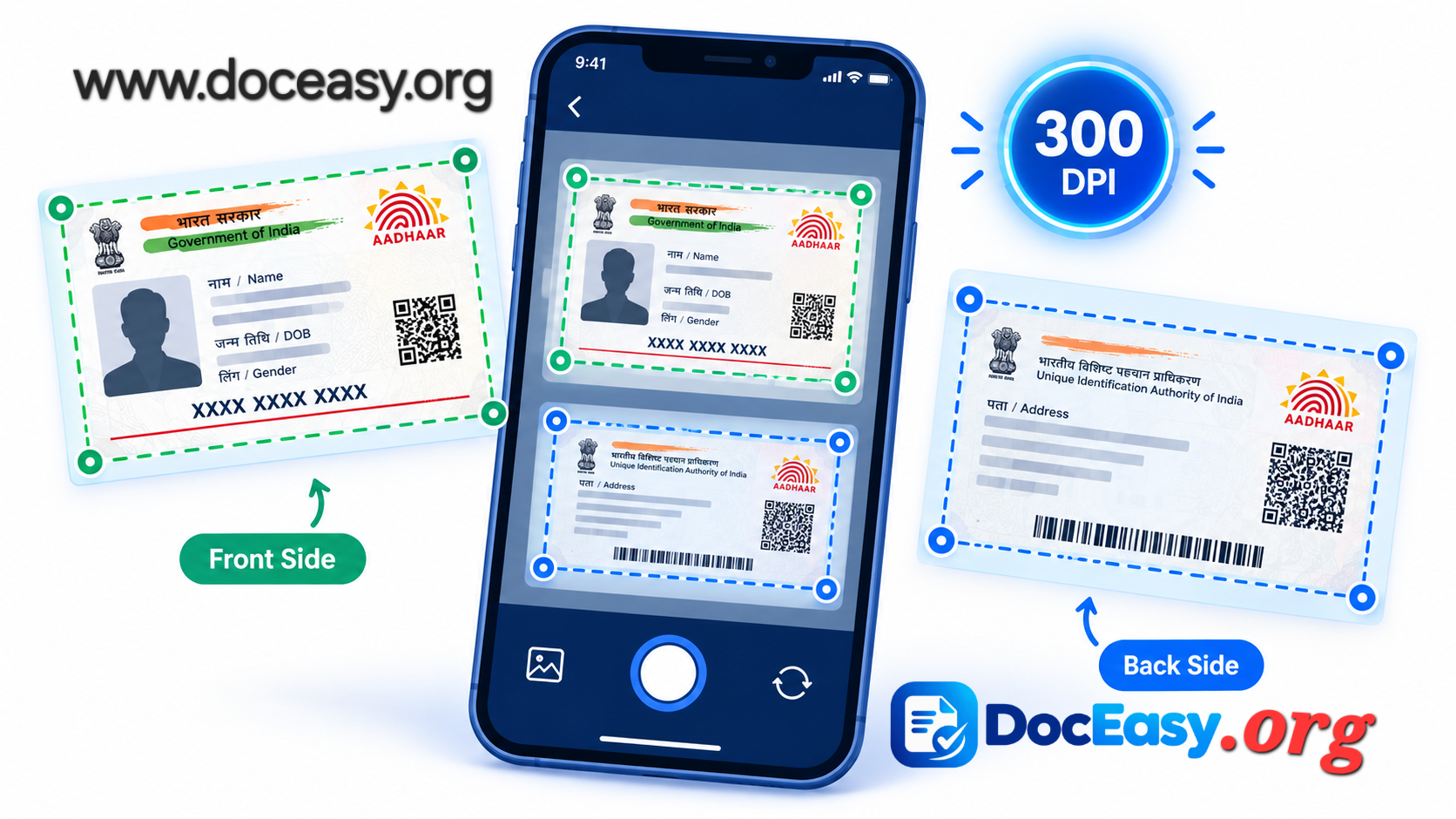
Applying for a government exam, opening a bank account, or verifying your identity on a job portal almost always demands clean, correctly-sized copies of your ID card — both front and back. Whether it's an Aadhaar card, PAN card, Voter ID, Driving Licence, Shram Card, or any other government-issued identity document, the DocEasy ID Card Cropper produces Ultra HD 300 DPI output without ever uploading your sensitive identity documents to any server.
What is ID Card Cropping?
ID card cropping is the process of digitally extracting the card's front and back sides from a scanned PDF, photo, or combined page, and exporting them at a specific physical size and print resolution. The purpose is to produce a clean, print-ready image of the card that can be uploaded to government portals, printed on plastic or paper, or stored in a digital locker.
Unlike simply taking a photograph, cropping ensures that the output is perfectly aligned, correctly sized, and rendered at the right DPI for its intended use. This is critical because almost every official portal — from Aadhaar's myAadhaar service to banks, insurance providers, and exam registration systems — has strict size and quality requirements that a raw photo will not meet.
Why 300 DPI Matters
DPI (Dots Per Inch) determines the physical print quality of an image. Government portals, exam authorities, and banks usually specify 200–300 DPI for uploaded ID cards so that text, QR codes, and photos remain legible. At 72 DPI, text becomes blurry and QR codes stop scanning; at 300 DPI, every detail is razor-sharp even when printed at full size.
This tool renders your cards at 300 DPI by internally using the original PDF's vector data at up to 4× display resolution — guaranteeing sharp output every time. If your source is a photograph, we upscale intelligently to preserve edges, reduce JPEG artifacts, and maintain legibility.
Works With Any ID Card
The cropper is designed around the international CR80 standard — the same size as a credit card (8.5 × 5.5 cm). Every Indian and most global identity cards follow this standard, so the tool works seamlessly with:
- Aadhaar Card (both front and back) — issued by UIDAI
- PAN Card — issued by the Income Tax Department
- Voter ID Card — issued by the Election Commission of India
- Driving Licence — issued by state RTOs via Sarathi Parivahan
- Shram Card / Labour Card — issued by state labour departments
- Ration Card — issued by state food departments
- Ayushman Bharat Card — national health ID
- Government Employee ID Cards
- Student ID Cards
- Bank-issued identity cards
- Health insurance cards
- And any other ID in the standard CR80 size
Single-Side vs Dual-Side Cropping
Some documents contain only one side of a card (for example, a scanned front only). The tool provides Front and Back toggles in the toolbar:
- Turn off Back if your document only has the front side. Only the front will be exported and printed.
- Turn off Front if your document only has the back side. Only the back will be exported and printed.
- Keep both ON if you have both sides — the tool exports and prints two images (front and back) side by side.
- At least one side must remain enabled at all times.
Password Formats — Common Cases
Many ID card PDFs (especially e-Aadhaar and PAN) are password-protected when downloaded. The password formats differ by document:
Aadhaar Card (e-Aadhaar)
Password format: First 4 letters of your name in CAPITALS + Birth Year.
Example: Name Deepak, Birth Year 1998 → DEEP1998
PAN Card
Password format: Your Date of Birth in DDMMYYYY.
Example: DOB 15 January 1998 → 15011998
Any Other Protected PDF
The password your provider gave you. Common patterns are DOB, PAN number, Name + DOB, or PAN + DOB. If none of these work, check your email inbox for the download confirmation — the password is usually mentioned there.
Step-by-Step Instructions
- Step 1 — Upload: Drag-and-drop your ID card PDF, scanned JPG, or phone photo into the drop zone.
- Step 2 — Enter password (if prompted): Use the correct format for your document. If you don't know it, try the common patterns above.
- Step 3 — Toggle sides: Turn Front or Back off if your document only has one side.
- Step 4 — Position crop boxes: Green = Front, Blue = Back. Drag each box to sit over the corresponding card.
- Step 5 — Adjust size (optional): Default 8.5 × 5.5 cm (CR80 standard). Change if needed for a specific portal.
- Step 6 — Fine-tune: Use the 8 handles around each box to align edges precisely.
- Step 7 — Download or print: "Save HD Images" downloads the enabled sides, "Print Ultra HD" opens the print dialog.
How to Move and Resize the Crop Boxes
- Move: Click anywhere inside the crop box and drag it to the correct position.
- Resize from corners: Drag the four white square handles at each corner.
- Resize from edges: Drag the black bar handles in the middle of each side to stretch in one direction only.
- Mobile support: On phones and tablets, use one finger to drag the box or its handles.
Common Use Cases for ID Card Cropping
Identity card cropping is an everyday need across India and beyond. Here are the most common scenarios:
- Government exam applications: SSC, UPSC, NEET, JEE, IBPS, RRB — every one requires clean ID card uploads.
- Bank account opening: KYC requires both sides of Aadhaar or PAN.
- Tax filing: ITR submission needs clear copies of PAN and Aadhaar.
- Passport applications: Passport Seva portal requires correctly sized ID proofs.
- Driving licence renewal: Sarathi Parivahan requires specific ID uploads.
- Insurance claims: Insurers ask for ID card copies for claim processing.
- Rental agreements: Landlords request tenant ID proofs.
- Job applications: Employers ask for ID card scans for onboarding.
- Digital locker uploads: DigiLocker, DigiYatra, and similar services need ID documents.
- Printing PVC cards: Order custom PVC cards by uploading clean cropped images.
Why Use DocEasy Instead of a Scanner?
Traditional scanners produce large TIFF or PDF files that often need further editing before they can be uploaded to a portal. DocEasy's cropper gives you a purpose-built workflow:
- No install: Runs entirely in your browser — no software download.
- No file size limits: Upload the original scan or photo, we handle the rendering.
- Exact size output: Set the target cm dimensions and the tool exports at that exact size.
- Perfect DPI: 300 DPI output ready for print or upload.
- Password support: Works directly with password-protected e-Aadhaar and PAN PDFs.
- Privacy-first: Files never leave your device.
No Photoshop Needed
Because the export renders at true 300 DPI from the original PDF's vector data, there is no need for any external image editor. The tool produces print-ready cards directly — no need to adjust levels, crop manually, or export at multiple resolutions.
Pro Tips for Perfect ID Card Scans
- Scan at 300 DPI: In your scanner settings, choose at least 300 DPI for the sharpest results.
- Use a matte surface: Place the card on a matte dark surface in daylight to avoid glare and shadows.
- Avoid camera flash: Use natural daylight instead of flash — flash creates hot spots that hide fine print.
- Keep the card flat: A bent or curved card produces distorted text. Flatten it before scanning.
- Verify before submitting: Zoom to 200% after cropping to verify the card number and QR code are readable.
- Keep both sides: Even if the portal only asks for the front, save both sides for future needs.
- Use PNG for masters: Save HD PNG images as your master copies. Convert to JPG only when a portal requires it.
Security & Privacy
Identity documents are among the most sensitive files you own. DocEasy is built around a strict privacy-first architecture:
- No uploads: Files are processed entirely inside your browser's memory.
- No server storage: Nothing is saved on any external server.
- No tracking: We don't log which documents you crop or when.
- No account: Use the tool completely anonymously.
- Offline capable: After loading, the page works offline — you can turn off Wi-Fi and crop anyway.
Frequently Asked Questions
Is my ID card data safe?
Yes. Everything happens in your browser. Nothing is uploaded, stored, or shared. Your Aadhaar, PAN, and other ID cards never leave your device.
Can I crop only one side?
Yes. Use the Front and Back toggles in the toolbar to enable or disable each side. Only enabled sides are exported.
Which ID cards are supported?
Any ID card in the standard CR80 size (8.5 × 5.5 cm) — Aadhaar, PAN, Voter ID, Driving Licence, Shram Card, Ration Card, Ayushman Card, and more.
How do I know my e-Aadhaar password?
First four letters of your name in CAPITALS + year of birth. Example: "Deepak" born 1998 → DEEP1998.
What is my PAN card PDF password?
Usually your Date of Birth in DDMMYYYY format. Example: DOB 15/01/1998 → 15011998.
Will the print have a border?
No. The print output is borderless — cards are placed at the top-left corner of an A4 sheet at their true 8.5 × 5.5 cm size.
Can I use this on mobile?
Yes. The crop boxes and handles are fully touch-enabled for phones and tablets.
What output format is supported?
PNG images at 300 DPI. PNG preserves quality perfectly and can be converted to JPG by any image editor if needed.
Can I crop many ID cards at once?
One card at a time. But you can crop front and back simultaneously using the two crop boxes (green for front, blue for back).
Does the tool work offline?
Yes. After the page loads once, you can disconnect from the internet and continue cropping. Everything runs locally.
Related DocEasy Tools
Once you've cropped your ID cards, you may also find these DocEasy tools useful:
- Passport Photo Maker — Generate 300 DPI passport photos
- Signature Resize — Resize signatures to exact pixel or KB size
- Signature BG Remover — Clean white background for signatures
- Document Scanner — Scan paper documents to digital PDF
- Merge PDF — Combine multiple PDFs into one
- Compress PDF — Reduce file size for upload
Conclusion
Whether you're applying for a government exam, submitting KYC documents to a bank, or just printing a clean copy of your ID card for personal records, DocEasy's ID Card Cropper gives you professional-grade 300 DPI output in seconds — without uploading your sensitive documents anywhere.
Try it above. Upload your Aadhaar, PAN, Voter ID, or any other ID card. Crop both sides. Download print-ready images. All in your browser, all completely private.